Welcome!

Welcome! Thank you for visiting the Video Voice Speech Training System blog. Our goal here is to provide a forum for sharing ideas about using this exciting speech development tool, learning about new enhancements to the program, and stimulating interaction between people who are already using Video Voice or who are considering it for their speech therapy needs.  Please join us and share your experiences, ask questions, or make suggestions for new features or capabilities. We're here to listen as well as talk!

To learn more about this innovative speech therapy aid or download a Free Trial, visit www.videovoice.com.

Showing posts with label volume. Show all posts

Monday, April 29, 2013

What's New? Version 3.0.128 Has Launched!

Long time, no blog...  Perhaps you thought we'd dropped off the face of the earth.  Nothing could be farther from the truth.  We've been busy for a number of months working on the recent release of Video Voice Version 3.0.128.  Just when we were about ready to release it last fall, Microsoft threw us a bit of a curve ball with their own release of the new Windows 8 operating system.  If you have tried it, you know that it's very different from earlier versions of Windows!  Rather than release the new version with unknown compatibility, we spent the next several months making sure Video Voice will operate correctly on this new platform.

Now, FINALLY, we're happy to announce the release Version 3.0.128.  In addition to Windows 8 compatibility and all its previous, fabulous features and capabilities, Video Voice 3.0 now includes:

  • Fundamental frequency measurement to complement other Assessment capabilities.
  • Customization of on-screen reward text and other prompts to correspond with user-modified audios to personalize the therapy experience
  • Enhanced trace operation in the Multi-Frequency Formant Spectral Display to make it easier to capture sounds for practice, opening up potential for work on minimal pairs, in addition to high frequency sounds and more
  • Goal scoring in the Formant Multi-Frequency Gobble game to make display more effective for therapy use
  • F2/F1 and Multi-Frequency (F3/F2) Gobble display access directly from Formant Menu to make reaching this powerful feedback mode easier.
  • Simultaneous display of pitch and volume in P-A-R Connected Speech, with volume shown as peaks and pitch in spectrum colors
  • New Streaming Speech P-A-R display, provides live, "marching" display of pitch, volume, or both volume and pitch (as color) 
  • New Fun & Games 12-Pack, a lower price option for those with limited budgets or interest only in game practice options
  • Price reduction on all other software packages
  • Revised internal documentation (Help) with more internal links to relevant pages
  • Improved Windows 7 operation

There are numerous benefits to purchasing the Video Voice Speech Training System.  The most important one is the change the displays and games bring to the therapy process - helping individuals feel more in charge of their speech skills.  Another significant benefit is that software updates are FREE.  As we add new features and capabilities, you may download and install a new copy at no additional cost.

Already an Authorized User?  Please visit www.videovoice.com/vv_curel.htm to download Version 3.0.128 and update your Video Voice software.    

Haven't yet made the investment in this valuable tool for your speech therapy activities?  What are you waiting for?  Download Video Voice 3.0 and try it for 30 days, with absolutely no charge, at www.videovoice.com/vv_demo.htm.

We'll be back soon to tell you more about some of these new capabilities and offer more thoughts on how visual feedback can accelerate the therapy process.  Meanwhile, have questions?  Need assistance with using Video Voice with your caseload?  Want to restart a free trial you previously used to evaluate Video Voice's potential for your therapy needs?  Just pick up the phone and give us a call, or send an email.  We'd love to hear from you!

Yours in good speech,

Video Voice Support Team
1-800-537-2182
mv@videovoice.com

Friday, August 3, 2012

Have It Your Way

Video Voice is a very flexible speech tool, with options for nearly any kind of speech problem. Although the games and displays all have default settings, operation of most areas is up to you, and can easily be modified to fit your needs. To start with, there are no speech targets preprogrammed. It's up to you to define the content appropriate for the individuals in your caseload, and creating models is an easy process.
In addition, for almost any area of the program, there are ways to customize it to meet the needs of each and every individual in your caseload. Don't like some aspect of operation? Look around, there's probably a way to change it. Almost every control is adjustable!

So, how do you know when something can be modified?  Well, Video Voice offers various visual cues.
  1. Any control that can be adjusted generally appears in cyan color.  
  2. The mouse pointer offers hints, changing from an arrow to a hand when it passes over an adjustable control.  
  3. If you briefly dwell the mouse cursor over a button or cyan control, a small “tool tip” will appear that briefly describes its operation. 
Here are just some of the things you have control over:
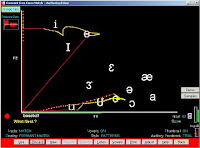
Speech Representation:  With the Formant Displays, which are helpful for articulation, you can choose to represent sounds in a matrix or cross-time (temporal) form. Matrix generally illustrates sound differences more effectively than temporal displays, but does not show durational differences as well. 
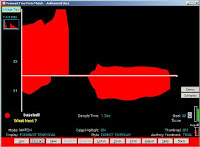
With the P-A-R (Pitch-Amplitude-Rhythm) displays, you can view the pitch or volume characteristic of any sound production. With both Formant and P-A-R models, you can switch between the two styles with a single mouse click.

Formant Matrix Vowel Chart: By default, vowel symbols will appear on the screen in the F2/F1 matrix display, identifying the general locations on the screen where different vowels generally appear. Dont want to see them at all? Click the Vowels button to turn the whole chart off and on. The default vowel symbols are IPA style; if you prefer standard "dictionary" symbols in the chart, make that change with the Formant Adjust button. 

Want to change the position of a vowel in the chart? Differences in speakers' production of vowel sounds can affect where they map on the screen. To change the position of any symbol, just click and drag it to the desired screen location. Don't want all the symbols to appear? Just click any symbol, drag it off the edge of the screen, and it will disappear. The new locations will be stored either in your therapist folder or in the individual's folder if one has been activated. This lets you customize the vowel chart to your own voice, or those of people in your caseload.
In the F2/F1 Gobble game, you can specify whether the vowels are "permanent," automatically refreshing when the Gobbler eats parts of them, or "erasable" and can be ''eaten up in the vocalizing process. This can be helpful if you're working on production of specific vowel sounds, and want the reward to be erasure of the symbols themselves. (Of course, the Gobbler's movement back to the corner of the voice space can cause parts of symbols to be erased without production of that sound, so use this cautiously!)

Performance Goal: Typically set to 80 by default, this control exists in most displays and determines the score needed to achieve an “Excellent” message and see a reward animation. You can raise or lower it at any time to make the display or game more or less demanding. If you change the performance goal in one display, that change automatically carries over to the other displays, too.

Reward Animations: There are two types of reward graphics. One is an animated cartoon that appears on the right side of the screen in pattern-match displays. The other is a box in the middle of the screen that contains a congratulatory message along with a colorful pattern; these rewards appear in many of the games. You can preview and select among the animated cartoons with the Adjust button in the Formant and P-A-R displays.

The game rewards are controlled through the Game Preferences button on the Fun & Games menu. (There you can also choose from among the many reward sounds, too.)
You can control whether rewards appear automatically when a production's score exceeds your performance goal, override Video Voice if you disagree with its assessment, or award all cartoon animations yourself. Use the Formant and P-A-R Adjust buttons, or the Game Preferences button on the Fun & Games menu, to access these settings.

Game Controls:  The Fun & Games options have a variety of adjustable controls. Some are common, shared across games, such as the Fade Speed (how fast a graphic disappears from the screen when the desired task isn't met) and Stop Sensitivity (how quickly Video Voice reacts to pauses in vocalization ). If you make a change to one of those common controls, it will apply to all games that have that adjustable option, too.  

Mostly, however, controls are specific to the individual games. Examples:

Pitch Painting, which provides a colorful display of pitch, has adjustable brush shapes and sizes that let you add visual variety to the feedback.  You can simply show varying pitch levels in speech, or choose only to reward vocalization with pitch above or below certain levels.

In Speech Ball, you can control how many balls will be in play in the game, the Speed at which they move, and the Hot Zone (area of the screen in which voicing will be detected).

With the Chat-N-U-Go Choo-Choo game, you can choose the game icon (antique or modern train, cars of different colors, or horse) and select from speech goals including more or less volume, vocal onset, or production of target sounds or individual words. Within any of the game goals, you have control over the performance required, speed of the game icon, and number or duration of vocalizations or trips required to complete the game, so you can make it easier or more demanding.

Likewise, Jumping Jack offers track events for work on volume control, duration, onsets and speaking rate. Each event has its own set of controls, such as running speed, vocalization time required, and amount of volume necessary for success.

The Bulls Eye! game lets you control which games appear in the menu. Although the little boys enjoy the bomb-dropping games and their explosions, some therapists prefer only the peaceable Care Packages and Flower Power games. With the Game Selection option, you can make the Battleships and Tanks A Lot games invisible and inaccessible. (This capability was added in response to a school district's non-violence requirement - we listen to our users!) You set the onset targets in all the Bulls Eye! games, and also can control the game speed.

The Voice-A-Sketch game has 78 built-in, high-quality pictures to choose from, but you can also use your own images if you wish. This makes it possible to tailor the graphic feedback to each individual's interests. Voice-A-Sketch also has multiple speech goal options, from simple continuous phonation or vocal onsets to volume control, duration, and word or sound articulation.

Personalized Audio and Display Text: Newly added to Video Voice is the ability to personalize the prompts for voicing and reward audios and messages that appear. The generic "Say" or "Very Good" messages can be replaced by "Mary, say..." or "Very good, Johnny!"  Modified audios and text can be stored in each individual's case folder, customizing the feedback for each person you work with. In the International/Simplified Operating mode, the prompts can even appear in other, non-Latin keyboard languages such as Arabic.

These are just some of Video Voice's displays and games, and controls that let you "Have it your way." Look around and explore the software to determine what works for best for you and is most motivating and effective with members of your caseload!  (If you don't already have Video Voice, download the program at www.videovoice.com and try it free for 30 days.  If you're already using it, you can make sure you're using the most up-to-date version, and download a no-charge update there.)

Yours in good speech,

Video Voice Support Team
mv@videovoice.com
1-800-537-2182
www.videovoice.com

Friday, July 29, 2011

Hey, I Have A Voice!

Over the years, we’ve talked with many therapists who have told us they find Video Voice most helpful with young children who come into their programs with little or no awareness of their voices. In particular, profoundly deaf youngsters often start off with no idea that vocalization is even an option. Visual stimulus for those little ones can be a key that unlocks a hidden door, helping them understand that "I have a voice, and something happens when I use it!" 

Video Voice has many options to assist with this first building block of speech. The simplest are those like Pitch Painting, Magic Box (Magic Blocks option), Kaleidoscope and On The Air, in which any sound results in colorful response from the display.


Others like Chat-N-U-Go Choo-Choo and Voice-A-Sketch can be set so that any form of sound onset or ongoing vocalization will result in a change in the display. With Choo-Choo, it can be the train, car or horse moving after a vocal onset or sustained phonation is detected. With Voice-A-Sketch, a picture will be gradually be revealed. You can use these games to start with simple phonation or onsets (then later move to work on volume control, specific sounds and words).

The Up, Up and Away game, the object it to try a balloon across a mountain range. The balloon only moves when voicing is present, and its height is related to the volume level. If the player This encourages vocalization, and allows for work on speaking volume as well.

With the Jumping Jack race game, you can use the More Volume option, but set the volume level required very low. Then, most any vocalization will make Jack run.

Another simple "cause and effect" game option is Laser Master.  In this game, vocalization activates a laser beam and moves an "alien space ship" out into space (off the screen).  Although the general purpose of this game is for pitch and/or volume work, the Duration goal simplifies operation, and any pitch or volume will make the space ship glide across the screen. 

In addition to the games, Video Voice offers other graphic displays to help develop cognition of speech, such as the Formant Multi-Frequency Spectral display and Formant Gobble.  The Spectral display provides visual feedback with a colorful graph of all three Formant frequencies simultaneously.  The Gobble display is like "Pac-Man for speech" - the goal is to eat up a sound pattern.  The live nature of these displays is a very powerful way to illustrate the presence (or absence) of speech.

These are just some of the ways visual feedback can stimulate the awareness and use of voice. Whether you’re working with hearing impaired children, those with autism who need encouragement to develop their speech skills, or youngsters those who are relearning vocal control after a head injury, you’re sure to find something in Video Voice that will pique their interest and get them talking!

Yours in good speech,

Video Voice Support Team
1-800-537-2182


Monday, June 27, 2011

Picture Perfect Speech

There are many aspects of Video Voice that can be adapted to meet the individual needs of the people you work with. You can specify the kinds of reward images and sounds that you want to see and hear. You can choose how scores appear in the Formant and P-A-R displays, as well as some aspects of their calculation. In the games, you can control which reward sounds are played at the end of the game, default Fade Speed, Pitch Range and other aspects of score display and game operation.  Changes you make can be stored as part of your Therapist ID settings , or, if you have a individual’s data folder active, settings can be permanently saved there.  Then, any time you reactivate that person’s data folder, the individualized settings  are automatically used.

The game that has the most options for customization is Voice-A-Sketch.  In that game, meeting the defined speech goal results in a picture appearing, either in pieces or in "window shade" fashion.  (The goals can be continuous phonation, volume above or below a defined target level, production of a target sound or work, and more.)  There are 78 high-quality built-in pictures to choose from, but you can also use images you have stored on your computer.

A few years ago, a therapist who works with autistic children said she felt they would respond more favorably if familiar images appeared - family members, pets or other objects of particular interest to them.  We responded by adding a new Graphics Source control that lets you use either the Built-In or My Own Pictures.  If you choose the latter, Video Voice looks in the My Documents/My Pictures area of your computer, and lets you choose from any images you have stored there.

This provides some very powerful personalization of the game. Say you’ve got a little girl who is very motivated by horses, or a little boy who loves sports cars. You can set up folders under their names in your My Pictures area and fill them with those kinds of images.

There are literally thousands of pictures available online of nearly any image type. Google or other search engines can assist you in locating them. When you find one you want to use, simply right-click on it and use the "Save Image As" option to put a copy of the .jpg or .gif in the desired My Pictures folder.  Voila!  You’ve now got a picture you can use in Voice-A-Sketch.

When importing pictures into Voice-A-Sketch, you don’t have to worry about the shape and size. Video Voice will size the pictures to best fit within the available space and adapt the picture frame accordingly.  The best images will be landscape in orientation, because that’s how the screen’s "easel space" is laid out, but any size or shape will work.

The possibilities are endless!  Have fun personalizing Voice-A-Sketch to make it even more uniquely motivating for individual cases.  If it’s an option for you, you even can involve them in the search for pictures they’d like to see, and use that as a therapy activity, too.

Yours in good speech,

Video Voice Support Team
http://www.videovoice.com/
1-800-537-2182
mv@videovoice.com

Tuesday, April 19, 2011

Learning Video Voice - Help Me Choose

Learning to use a new piece of software can be fun, but can also be a challenge. Everything is new and unfamiliar, and you may not be sure where to start. There are lots of choices, and you're not sure what they do. How do you proceed? Click and guess? That's what a lot of us do, and it can be all too easy to get into "deep water," unsure of how you got there and how to get out!

Video Voice is a robust therapy tool with a variety of games and displays, each with many adjustable options that let you tailor operation to your specific needs. We’ve tried to do our very best to make it easy to learn and use. But, because there’s so much you can do with it, figuring out where to start can be daunting.

Welcome to Help Me Choose! In the lower area of the Main and Start-Up menus, you’ll find a Help Me Choose button. This opens an interactive application that lets you pick and choose among many common goals therapists share, things like articulation, vocal awareness, pitch, volume, and breath control and get information about them and access to them.

Start by clicking one of the speech goals. The first one, Vocal Awareness, has been preselected for you, and on the right side of the window you’ll see the different options Video Voice offers for work on that aspect of speech. Click on any of the options, and a brief summary of that game or display appears in the lower area of the window. Want to give it a try? Just click Use, and Video Voice will take you to that area so you can explore it. When you’re done, click Back, and you’ll see the Help Me Choose interactive guide again, where you can select other games or displays to try out.


 Pretty cool, isn’t it? Help Me Choose is just one of the ways Video Voice helps you learn about how it operates. Others include:

  • Context-Sensitive Help. You can click Help at most any point in Video Voice operation, and open the extensive internal manual to the page appropriate for the area where you’re working.
  • Tool Tips:  Dwell with your cursor over any button or adjustable control (cyan-colored text identifies adjustability), and a little pop-up box will appear that briefly describes its function.
  • Start-Up Tips:  This button on the Main Menu provides suggestions on how to get started with Video Voice, as well as access to lots of other information, such as FAQs, Uses and more.
  • Solutions and Support PDFs:  Solutions are 1-2 page documents that offer guidance on using Video Voice for common speech goals, things like Vocal Awareness, Articulation, Pitch and Volume.  You can print them to keep handy for reference.  Other support PDFs provide information about Getting Started, and Overview of operation, a handy Displays and Activities reference chart, and more. 

And, if you get stuck, we’re available by phone or email to make suggestions on use for different therapy activities and help you get going. We want your experience with Video Voice to be positive, so don’t hesitate to call on us for assistance!

Video Voice Support Team
1-800-537-2182
mv@videovoice.com

Thursday, March 24, 2011

Technical Yada-Yada

From time to time, people ask about the technical details of Video Voice. So I asked the programming staff to provide some, and here’s what they had to say.

The heart of the Video Voice software is a specially developed Fast Fourier Transform (FFT) routine packaged in a .dll. It "pumps" the speech data to the various therapy displays and games. The FFT analyzes data obtained from the computer’s sound card and extracts F1, F2, F3, Pitch and Volume data as well as the strength of each frequency in the range of (70-7000 Hz), while simultaneously allowing graphic display and analysis in real-time. The FFT was developed for Version 3.0 and replaces a patented filtering process that required external Speech Analyzer hardware in previous versions of the software. The .dll also contains a set of precision timers that permits timed operations on computers with different internal processor speeds. The ability to use the computer’s sound facilities to record and play back sound files is another capability.

The Video Voice program consists of 270,000+ lines of VB6 programming code organized in more than 5,700 procedures. If printed as a book (called a listing in the old days), it would be over 7,200 pages long. Needless to say, we never print listings any more! In addition to the program code, there are nearly 1,000 built-in picture and sound (.wav) files, and an extensive Help subsystem with more than 150 topics that document program operation and use.

Have your eyes glazed over yet?

So, what does all this mean to Video Voice users? Well, there are 31 different colorful, motivating games and displays with more than 70 different modes of operation that can easily be customized to your personal needs. Most have entertaining graphic animations to reward successful performance. Individuals’ vocal productions are recorded and can be saved as models for repeated use. For most games and displays, performance can be reviewed in a variety of single session and cross-time reports and graphs. Whether your computer is an old workhorse with Windows 2000 or a fancy new one driven by Windows 7, Video Voice will run on it.

The program is fully documented with context-sensitive Help – just click the Help button at any time, and the internal manual will open to the page appropriate for the area where you’re working. There’s also a "Help Me Choose" interactive guide that helps you select appropriate areas for most common speech goals, as well as integrated Demos that use prerecorded audio to simulate operation of the games and displays. Adjustable options and game controls have "tool tips," helpful little hints that pop up to let you know what their basic functions are when you pause your cursor over them. Also integrated are a number of printable PDF supporting materials that suggest activities for work on pitch, volume, articulation and more.

First released in 2006, Version 3.0 is still undergoing development. We continue to find new things to add and ways to enhance what it can do. But more on that later!

Good speech to you,

Video Voice Support Team
1-800-537-2182
mv@videovoice.com

Friday, January 28, 2011

Visual Feedback Enhances Speech Therapy Results

The benefits visual feedback offers to both clincians and individuals receiving speech therapy are unquestionable.  Speech is fleeting and intangible by nature, and challenges in interpreting it can be influenced by a number of things, including hearing loss and other auditory processing deficits.  While production of some sounds can be illustrated fairly easily using our mouths, elements such as pitch and volume are essentially invisible.  Having a way to freeze, view and replay a speech production and its components therefore has great value.

Visual feedback changes the nature of the speech therapy process, giving the student or patient a different sense of control.  After all, it is his voice that's represented and recorded, and he has a new way to understand and learn to modify tongue or other articulator position to change the resulting display.  It's no longer a case of what the therapist says he's doing right or wrong, it's what both people see happening on the screen, and it gives them a different way to discuss it.  As more than one therapist has told us, "They can't argue with me anymore!"

For those who have already had years of speech therapy and are bored with the process, visual feedback brings new life to the activities.   Having different games to play and displays to practice sounds, words and connected speech turns therapy into a fun, exciting adventure to be explored and enjoyed.

Video Voice has many entertaining practice formats that keep therapy recipients motivated and eager to succeed in improving their speech skills.  Many provide live feedback on pitch, volume or sounds, so the speaker gets instant response to changes he makes, helping him find and maintain correct production.  Colorful animations and encouraging messages support the therapist by rewarding good performance. 

There are many reasons to consider visual feedback as an adjunct to speech therapy.  If you're not already exploring the benefits, you're missing out on a tool that can expedite progress with your caseload.  You can give Video Voice a try for free to see for yourself how it can enhance your therapy results.  There's no cost to download and explore what it can do for you.  Just pay a visit to http://www.videovoice.com/!

Video Voice Support Team
1-800-537-2182
mv@videovoice.com